
The «Hits Verification» tab allows you to check the results detected by manual or automatic screening.
How to check the alerts (hits) generated by searches on PEP and Sanctions lists? #
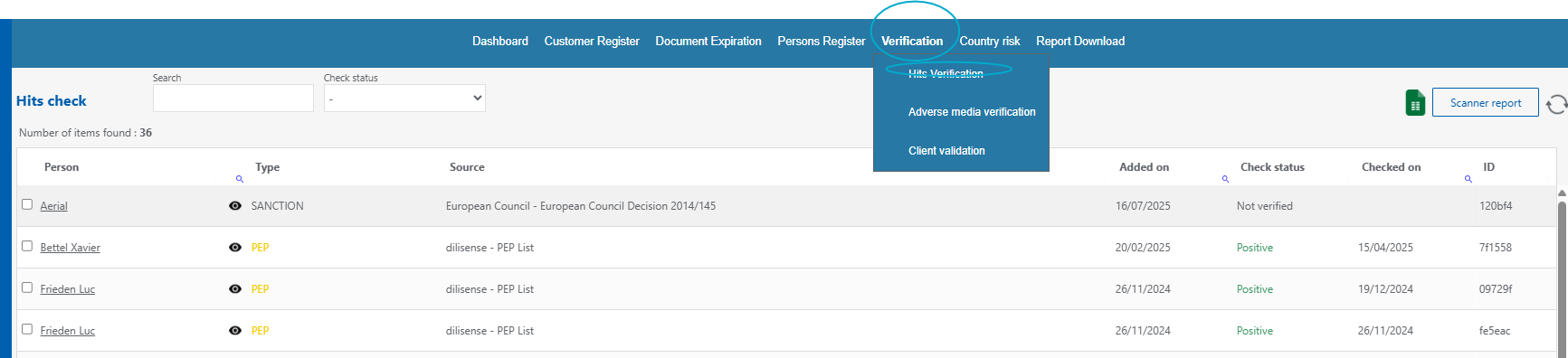
In the top banner, click on Verification, then on hits Verification
2. All PEP and Sanction hits from your entire database appear here, with the following information:
- Person Name of the person concerned (as registered in your database)
- Type Match type (PEP or sanction)
- Source Correspondence source
- Added on Date identified by the system
- Check status : Treatment applied to hit (unverified, positive or false)
- Checked Date on which you verified the match
- Identification Unique code assigned to the match
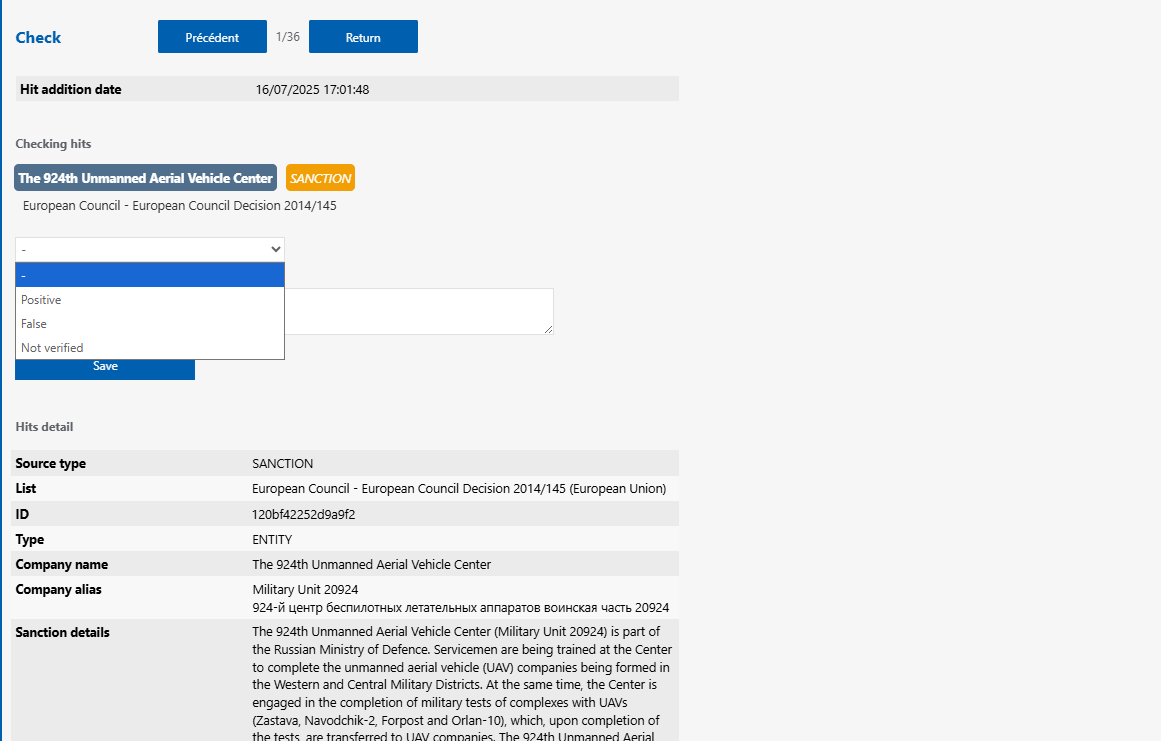
3. To verify a hit, click on the person's name. You will then have access to all the information from the list. On this basis, you can select the appropriate treatment (positive or false) via the drop-down menu, then add a comment justifying this treatment before saving.
Tip: You can navigate from hit to hit without returning to the previous menu using the arrows at the top of the window.
How to check multiple hits at once? #
In the top banner, click on Verification, then on hits Verification
Next to each person's name, click the small eye icon to get a preview of the hit in a pop-up window.
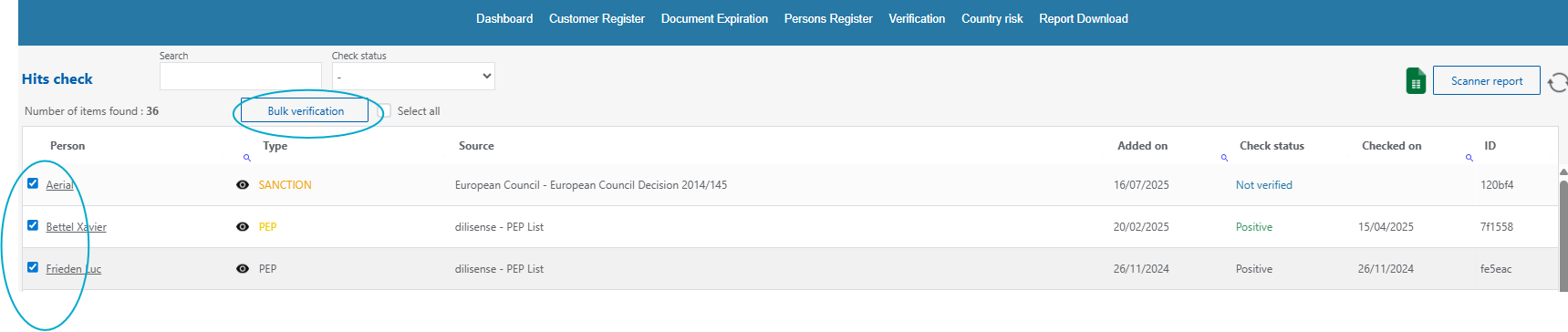
Select the hits you wish to resolve
Click «Bulk Verification». The selected processing (positive or false) and the indicated comment will be applied to the selected Hits.
How to check alerts (hits) generated by adverse media searches? #
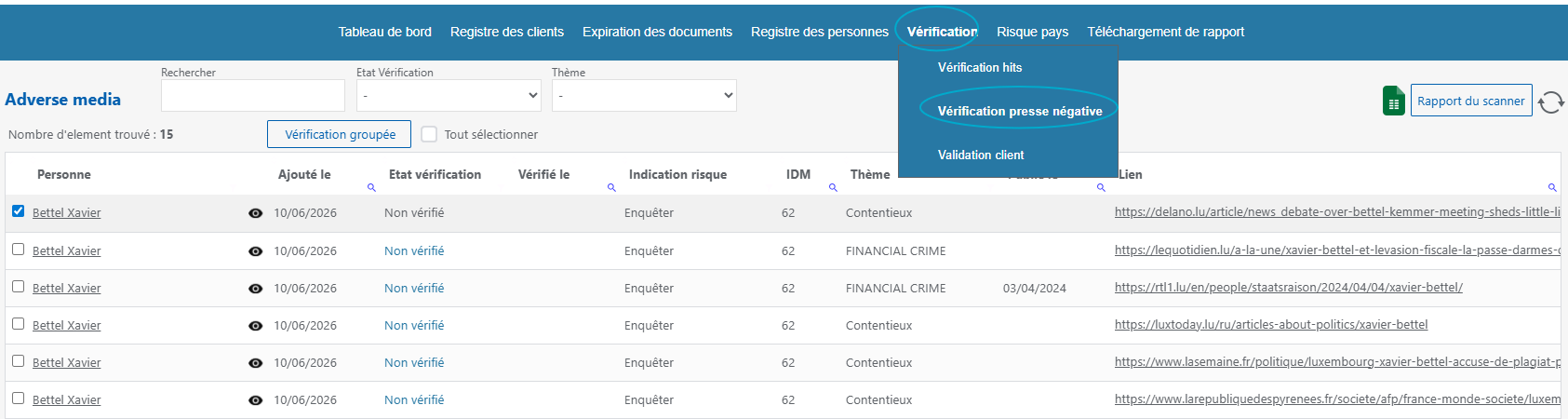
In the top banner, click Verification, then Adverse Media Validation
2. All the Adverse Media hits from your database appear here, with the following information:
- Person Name of the person concerned (as registered in your database)
- Added on Date identified by the system
- Verification status : Treatment applied to hit (unverified, positive or false)
- Checked Date on which you verified the match
- Risk indicator :
The «high risk» status indicates a high level of risk. It applies when the level of correspondence is strong, the person is directly involved in the alleged facts, and the source is verified.
The «investigate» status means that the finding requires further analysis. It applies when the person is directly involved in the events, but the connection is only possible or the source has not been verified. It may also apply when the person is involved in the events without being considered a direct participant.
The “No Risk” status means that the person is merely mentioned in the article, without being involved in any wrongdoing. This status therefore indicates that the article does not appear to pose a direct risk to the person or entity in question. - IDM :
The IDM is a matching score used to assess the level of similarity between the information provided during a search and the information mentioned in the press article regarding the entity being searched for.
This score is based on a correlation between the information entered in the search and the elements included in the article concerning the person or entity in question.
The objective of IDM is to reduce false positives by distinguishing the most relevant results from more uncertain ones.
A score of less than 60 % means that the article is not relevant
A score between 60% and 79 % indicates a possible or weak match. These results should be analysed with caution to confirm whether the article actually relates to the person or entity being searched for.
A score of 80 or above on the % scale indicates a strong match. In this case, there is a higher level of confidence that the article does indeed relate to the person or entity being searched for. - Article topic
- Article publication date
- Direct link to the article
3. To verify a hit, click on the person's name. You will then have access to all the information from the list. On this basis, you can select the appropriate treatment (positive or false) via the drop-down menu, then add a comment justifying this treatment before saving.
Tip: You can navigate from hit to hit without returning to the previous menu using the arrows at the top of the window.
How to check multiple hits at once? #
In the top banner, click on Verification, then on hits Verification
Next to each person's name, click the small eye icon to get a preview of the hit in a pop-up window.
Select the hits you wish to resolve
Click «Bulk Verification». The selected processing (positive or false) and the indicated comment will be applied to the selected Hits.